Adding Custom Content Attributes to Templates
Custom Content Attributes are available for Document, Assessment and Campaign templates. System Administrators and users with the Template role assigned can add these attributes to content templates. Custom Content Attributes can be hidden, locked and set as required at the template level. Once the custom content attributes have been added to the template, the content owner can then apply the template to their content item.
Important: Custom Content Attributes can also be added to documents as inserted field properties. See the Document Info section of Inserting Field Properties for more information.
Add a custom content attribute to a template
-
From the navigation pane, click Settings & Tools > Content Setup, and then click Templates.
-
Select the desired content type, and do one of the following:
-
Click New Template and then Create New or Copy Existing.
-
Select an existing template from the available list.
-
-
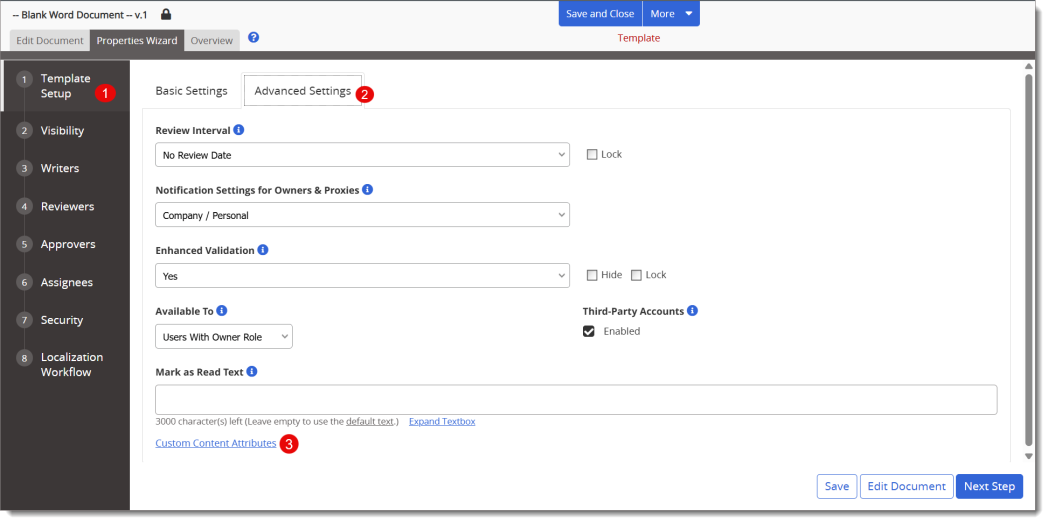
In the Template Setup step, select Advanced Settings.
-
Click Custom Content Attributes.
-
For Manage Attributes, do the following:
-
Make any desired changes to the custom content attributes.
-
Select the check boxes to Hide, Lock or Require the attributes.
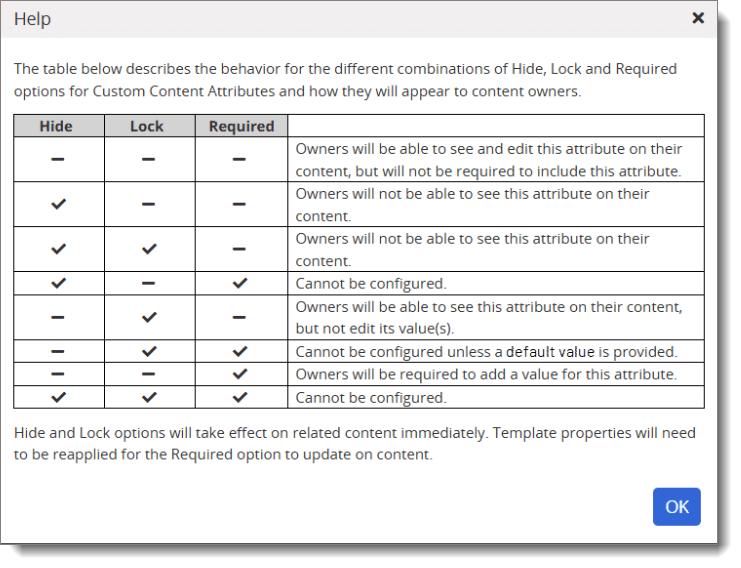
Note: Content owners must Reapply templates for any Required attributes to update within the content. See Changing or Reapplying a Template for more information.
-
-
Click Save.
 Product Information
Copyright
Product Information
Copyright
This publication was written and produced at NAVEX Global, Inc., Lake Oswego, Oregon. This publication or any portion thereof is confidential and/or proprietary and may not be reproduced or used in any manner whatsoever without the express written permission of NAVEX Global, Inc.
Copyright © 2026 NAVEX Global, Inc. NAVEX Global® is a registered trademark/service mark of NAVEX Global, Inc. The NAVEX Global® logo is a trademark/service mark of NAVEX Global, Inc. Unauthorized use of NAVEX Global, Inc.’s trademarks/service marks is strictly prohibited without prior written permission from NAVEX Global, Inc.