Adding a User Group
When adding a user group, you can include users from a single site, or you can create a multiple site group.
Add a User Group
-
Click Settings & Tools > User Setup, and then click Group Manager.
-
In the Group pane, select the site containing at least some of the users you want to assign to the group, and then for Group Type, click Writer, Reviewer, Approver, Assignee.
-
If your organization has a Disclosure Management subscription, Disclosure Assignee and Responder also appear as options for selection.
Note: Writer, Reviewer, and Approver groups can be used to assign workflow (pre-publication) tasks to documents and stand-alone assessments. Assignee groups can be used to assign reading and completion tasks to campaigns, as well as to individual documents and stand-alone assessments.
-
-
Click New, and then select New Group or New Multi-Site (Global) Group.
-
Type a name for the group, and then select the users for the group.
 User Selection Options for User Groups
There are various ways to select users for a group. You can select by a group type, roles, department, job title, or a custom attribute. If a user needs to be excluded from a group, an exclusion setting can be applied.
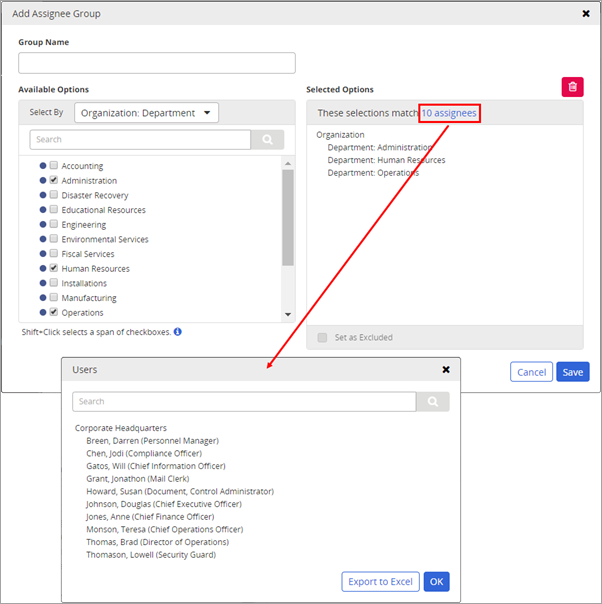
Note: In the new group dialog box, the number of assignees in the Selected Options pane changes as you use the various methods of adding users to a group. You can view the currently included individual users by clicking the [n] writers/reviewers/approvers/assignees link.
By Group Type
In the Select By list, select the role for the currently selected group type, and then, in the resulting list, select users.
By Roles
In the Select By list, select Roles, and then make one or more selections to add all users assigned to the selected role.
Note: If you are creating a single-site group (you selected New Group to start), Roles are restricted to those users assigned the selected role in the current site only. If you are creating a multiple site group (you selected New Multi-Site (Global) Group to start), Roles includes all users assigned that role from all sites. In other words, with multiple site groups, you cannot select users assigned a certain role by individual site.
By Department
In the Select By list, select Organization: Department, and then make one or more selections to add all users assigned to the selected departments.
By Job Title
In the Select By list, select Organization: Job Title, and then make one or more selections to add all users assigned to the selected job titles.
By Custom Attribute
For a Custom Attribute in the Select By list, do one of the following:
-
If a Custom Attribute is a text value, select a search operator (Equals, Contains, Begins with, or Ends with), and then click Add.
-
If a Custom Attribute is a date, select a date operator.
-
For Equals, Is before, or Is after, select a date using the calendar or type the date, and then click Add.
-
For Is between, select a date using the calendar or type the dates for start and end date, and then click Add.
-
For Within the last, type a number of days from today's date, and then click Add.
-
By Exclusion
In the Select By list, in the Selected Options pane, select that item, click Set as Excluded, and then click Save.
Note: Excluded selections are marked with
 .
.Before you exclude any selection, be sure to carefully read and understand the following exclusion rules.
Tip: When manually selecting individual assignees for a group, you can exclude a user by simply clearing the check box next to their name under Available Options.
Exclusion Rule 1
If a user is individually included or excluded (his or her user name appears in the Selected Options box), inclusions or exclusions by role, permission, department, or job title, or custom attribute are ignored.
For example, suppose that the following are true:
-
Jodi Chen is currently assigned to both the Manager job title and the Administration department.
-
The Manager job title has been selected and thereby added to the Selected Options box.
-
The Administration department, among others, have been selected and thereby added to the Selected Options box, but have been set as excluded.
-
The user name Jodi Chen has been selected and thereby added to the Selected Options box.
In this example, Jodi would be included in the group, because, although she is in an excluded department, she has been individually added as an included user.
Exclusion Rule 2
If a user is a member of two or more selected sets (roles, permissions, departments, or job titles), and at least one of those sets is set as excluded, the user will be excluded from the group.
For example, suppose that the following are true:
-
Anna Martinez is currently a member of the Administrator permission set, the Human Resources department set, and the Manager job title set.
-
The Administrator permission, the Human Resources department, and the Manager job title have all been selected and thereby added to the Selected Options box.
-
The Manager job title set has been set as excluded.
In this example, Anna would be excluded, because, although she is a member of both the Administrator permission set and the Human Resources department set, which are both included, she is also a member of the Manager job title set, which has been excluded.
Exclusion Rule 3
If every item in the Selected Options box is Set as Excluded, all remaining users in the Available Options box will automatically be added to the Assignee Group.
Important: Listing only exclusions could result in adding hundreds or thousands of users to the group. Be sure to look at the These selections match count in the Selected Options pane after setting exclusions to make sure you are not selecting more users than you intend.
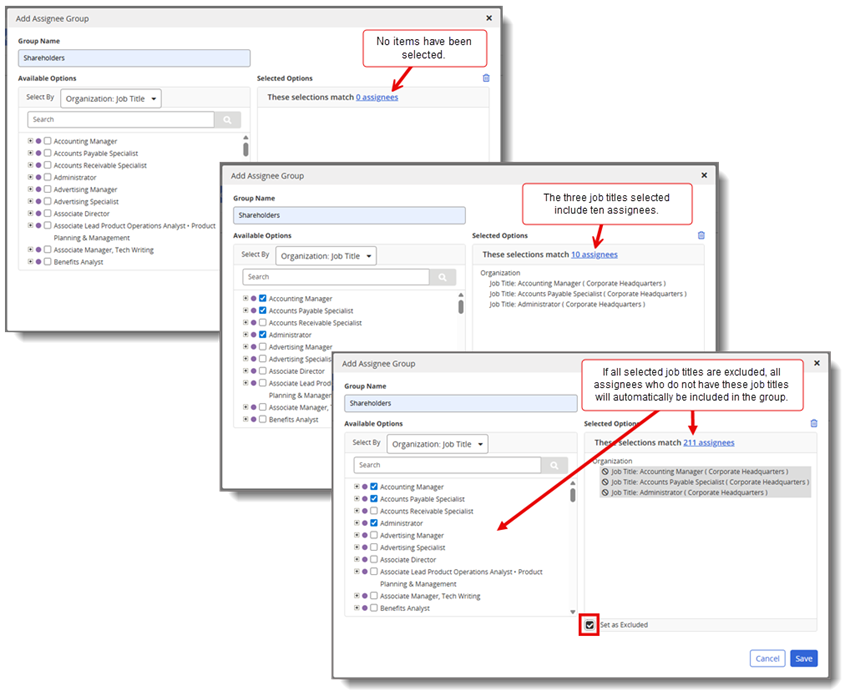
For example, suppose that the following are true:
-
The job titles Chief Executive Officer, Chief Financial Officer, Chief Information Officer, and Chief Operations Officer have been moved to the Selected Options box.
-
Each of these job titles has been Set as Excluded.
-
These excluded job titles are the only items listed in the Selected Options box.
In this example, the Assignee Group will include all users who do not hold any of the excluded executive titles — everyone in the organization except those executives.
-
-
Click Save.
Product Information
Copyright
This publication was written and produced at NAVEX Global, Inc., Lake Oswego, Oregon. This publication or any portion thereof is confidential and/or proprietary and may not be reproduced or used in any manner whatsoever without the express written permission of NAVEX Global, Inc.
Copyright © 2026 NAVEX Global, Inc. NAVEX Global® is a registered trademark/service mark of NAVEX Global, Inc. The NAVEX Global® logo is a trademark/service mark of NAVEX Global, Inc. Unauthorized use of NAVEX Global, Inc.’s trademarks/service marks is strictly prohibited without prior written permission from NAVEX Global, Inc.