Assigning System Roles
By assigning system roles, you can control who can perform specific management functions within Policy & Procedure Management. These permissions can apply to a single site or to all sites. You can assign system roles while creating or editing a user.
Assign a system role
-
From the navigation pane, click User Setup > User Manager, and then select a department.
-
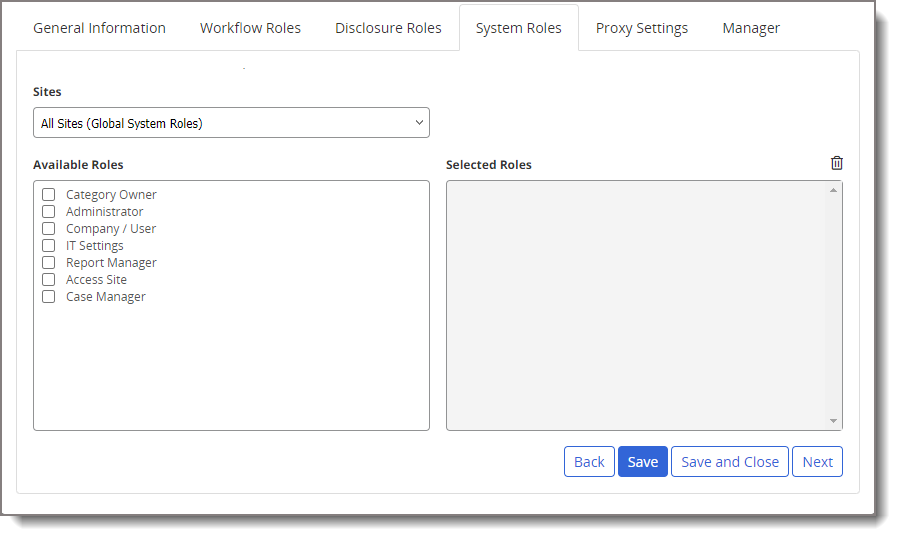
Select a user from the list, and then click the System Roles tab.
- In the Sites field, do one of the following:
- If you want this user's assigned permissions to apply to all sites, click All Sites (Global System Roles).
- If you want the assigned permissions to apply to only one site, click that site.
-
In the Available Roles box, select the permissions you want to assign this user.
 System roles
The following table lists each role and a description of its characteristics.
System Role
Description
Administrator for All Sites (Global System Roles)
A user assigned this role can access and edit all preferences (Company Setup, User Setup, and Content Setup), including designating other users as global or site administrators. An Administrator for All Sites can also generate and view reports and access other reporting options, as well as
- Do everything an owner can do except be assigned to own content.
- Set a content item as approved, skipping all assigned writers, reviewers, and approvers.
- Edit an approved content item in its current state without sending it back to draft or creating a new version. (The owner receives notification that the item has been edited.)
- Skip the next review date anytime (designate as No Revision Necessary), even before the review warning period.
Administrator for a Single Site
Aside from the exceptions listed below, a user assigned this role can do everything on a single site that an administrator for all sites can do.
- A site administrator cannot access the following preferences: General Properties in Company Setup; Default Properties in Content Setup; all IT Settings preferences.
- Because a global administrator can assign a category or template to multiple sites, changes a site administrator makes to an existing category or template affects it at all assigned sites. However, a site administrator cannot assign new categories or templates to other existing sites. But a site administrator can choose to have the new category automatically assigned to new sites as they are created.
- When assigning system permissions to users, a site administrator can only assign them for that administrator's assigned site.
Category Owner A user assigned this role can immediately access and edit all unassigned categories and their subcategories. Assigning a user, the Category Owner permission also adds that user to the list of category owners that can be assigned when adding or editing a category. When assigned to a category owner, a category can only be accessed and edited by that category owner and administrators. Company / User
If assigned this role for all sites, a user can access and edit all the Company Setup and User Setup preferences that a global administrator can access and edit. A user assigned this permission for a single site is limited to the Company Setup and User Setup preferences a site administrator can access and edit.
IT Settings
A user assigned this permission can access and edit all the IT Settings for all sites. Only a global administrator can assign this permission and only when All Sites (Global Permissions) is selected.
Report Manager
A user assigned this role can access all reports, except login reports.
Access Site
By default, a user only has access to the site assigned to that user in the General Properties tab of the user form. You can assign a user the Access Site role to grant that user access to other sites. Except for the Administrator role, which can be granted on a per site basis, whatever roles the user has in his or her primary site will be in force in other sites that user is granted access to.
Note: Assigning a user to a department at a different site in the General Properties tab of the user form in User Manager also grants the user access to that site.
View Content All Departments
This role is available only if you choose to restrict users to seeing content items for their assigned departments and only when you select All Sites (Global Permissions). By default, a user given the assignee role can view all unrestricted published documents assigned to any department. You can override this restriction for a specific user by assigning the View Content All Departments role.
Case Manager
This role is available only if case management integration has been enabled and set up. When assigned this role, a user can request that any accessible content item be updated.
- (Optional) In the Selected Roles box, click
 to remove a selected item.
 - Click Save and Close.
Product Information
Copyright
This publication was written and produced at NAVEX Global, Inc., Lake Oswego, Oregon. This publication or any portion thereof is confidential and/or proprietary and may not be reproduced or used in any manner whatsoever without the express written permission of NAVEX Global, Inc.
Copyright © 2026 NAVEX Global, Inc. NAVEX Global® is a registered trademark/service mark of NAVEX Global, Inc. The NAVEX Global® logo is a trademark/service mark of NAVEX Global, Inc. Unauthorized use of NAVEX Global, Inc.’s trademarks/service marks is strictly prohibited without prior written permission from NAVEX Global, Inc.