Assigning Campaign Template Properties
You assign properties to a campaign template through a series of steps.
Assign Campaign Template Properties
-
From an open campaign template, complete the following steps to assign properties to the template.
 1: Template Setup
The first step for assigning properties to a new campaign template is Template Setup.
- On the Properties Wizard tab, do any of the following:
- For Title, type a title for the new campaign template.
Because there is only one content type for campaign templates, the Content Type setting cannot be changed.
- If multiple sites exist, select those where you want this template available.
- (Optional) If this template is one you want all sites that might be created in the future to have access to, select Automatically select new sites as they get created.
- (Optional) By default, campaigns created from this template will be started (assigned to designated users for completion) as soon as they are approved. If needed, select Wait until specified date for Start Date. When creating a campaign from this template, the owner will then need to specify the start date (it cannot be preset in the template) or change the setting back to Start as soon as approved.
- Click Save. You should now see all Properties Wizard steps included in the template.
Important: You must save the template at this point before you can access Advanced Settings and the other Properties Wizard steps.
- (Optional) Click Advanced Settings, and then make adjustments as needed. See Assigning Advanced Settings for a Campaign Template for detailed instructions.
- Do one of the following:
- Click Next Step to continue assigning properties.
- Click Save.
2: Visibility
Use this step to choose whether to allow category or department selections only, or both when creating new campaigns using this template.
- For Visibility Settings, select Only Allow Category Selections, Only Allow Department Selections or Allow Both.
Note: If you select Only Allow Category Selections, no department will be assigned to new campaigns created from this template, and those campaigns will appear under Unfiled when browsing by department.
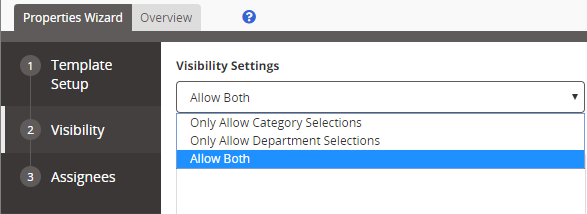
- Do one of the following:
- If you selected Allow Both or Only Allow Category Selections for Visibility Settings, continue with step 3 below.
- If you selected Only Allow Department Selections, skip ahead to step 6 below.
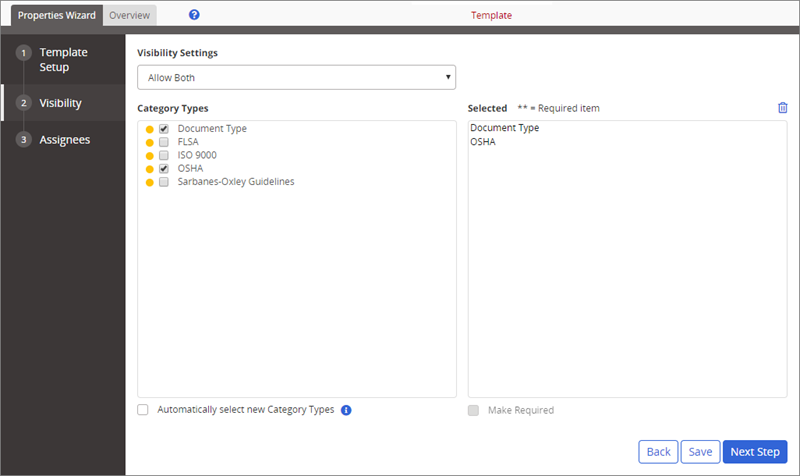
- Select one or more top-level categories.
Important: Selecting a top-level category enables an owner creating an item with this template to assign one or more subcategories from that category. If you select no categories, the owner will be unable to assign any subcategories.
Note: To remove a category type from the Selected box, click it, and then click
 .
.
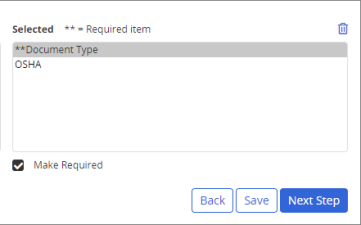
- By default, any categories you make available in the template are optional, meaning that owners can choose whether or not to select subcategories from the available categories. To make a category required—thus requiring a subcategory selection by the owner—click the category in the Selected box, and then select Make Required. (The two asterisks indicate that the category is required.)
- (Optional) Select Automatically select new Category Types if you want any category created in the future to be automatically added to this template as optional.
- Click Save.
- Do one of the following:
- Click Next Step, to continue assigning properties.
- Click Save.
3: Assignee
Use this step to designate assignees for the template.
- For Select From, click Assignees, and then select one or more users. To select user by approver group, job title or department, see Selecting Users in a Template.
- If multiple sites exist, select a site containing assignees you want to designate.
- Select one or more assignees.
Note: As you use any of the user selection methods, the total number of currently selected individual users is displayed above the selections in the pane on the right, as shown below.
-
(Optional) Click the user count to view a list of the selected users. While viewing the selected users, click Export to Excel and follow the prompts to export an Excel file containing the names and other identifying information of all selected users.
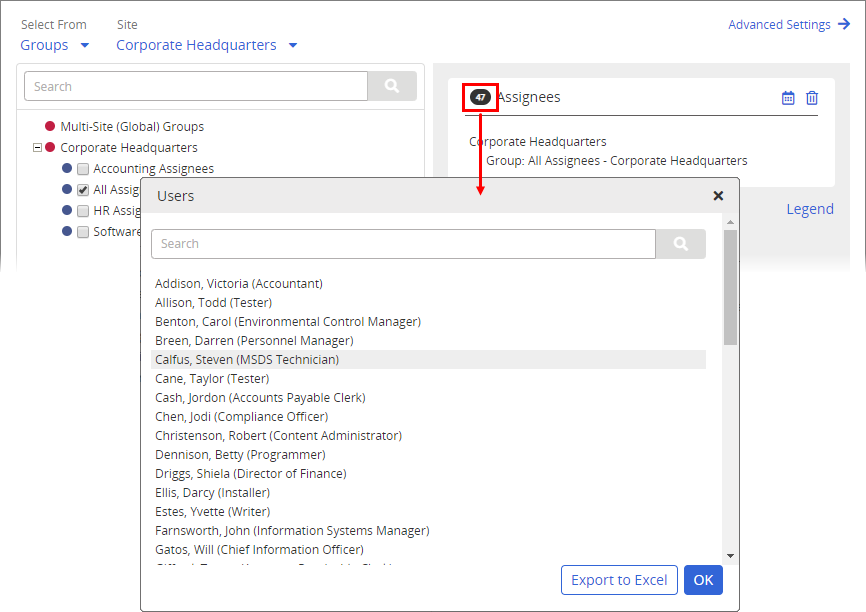
- By default, assignees receive only one assignment to complete a task based on this template. If you want the assignees to complete the task again periodically, click Advanced Settings.
-
For Recurrence, click Every, and then type a number of months.
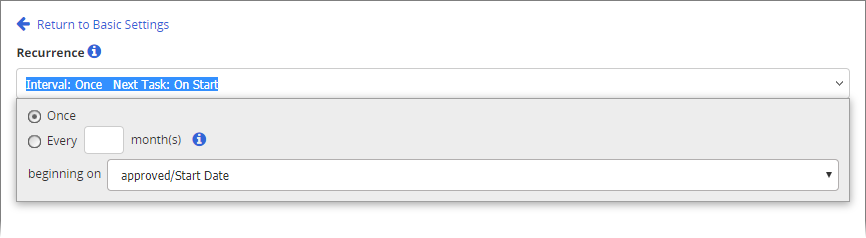
For beginning on, select approved/Start Date. Or, select specified date to have the campaign owner select a beginning date when creating a task from this template.
-
The Assignee Email Template field corresponds to the Default Email Template selected for Campaigns under the Default Properties menu. If needed, you can customize this selection for individual documents by choosing an alternative template from the Assignee Email Template list.
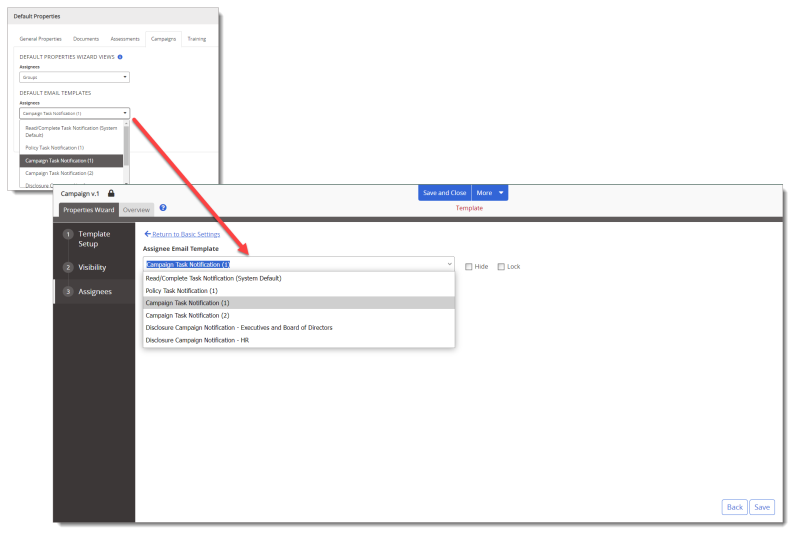
Note: Campaign templates created for Disclosure Management have the same options available as those created for PolicyTech.
- Do one of the following:
- Click Next Step to continue assigning properties.
- Click Save.
- On the Properties Wizard tab, do any of the following:
-
Click Save and Close.
Product Information
Copyright
This publication was written and produced at NAVEX Global, Inc., Lake Oswego, Oregon. This publication or any portion thereof is confidential and/or proprietary and may not be reproduced or used in any manner whatsoever without the express written permission of NAVEX Global, Inc.
Copyright © 2026 NAVEX Global, Inc. NAVEX Global® is a registered trademark/service mark of NAVEX Global, Inc. The NAVEX Global® logo is a trademark/service mark of NAVEX Global, Inc. Unauthorized use of NAVEX Global, Inc.’s trademarks/service marks is strictly prohibited without prior written permission from NAVEX Global, Inc.