Moving a Department
You can move a department from one site to another or up or down within the department-subdepartment structure.
Move a Department
- Click Settings & Tools > Company Setup, and then click Departments.
- If multiple sites exist, select the site containing the department you want to move.
- Click Move.
- Do one of the following:
- If your Policy & Procedure Management system is hosted by NAVEX, click Continue.
- If you are prompted to back up your database, click Back Up Database, click OK, and then, when the backup is finished, click Close. Because backing up the database automatically logs you out of Policy & Procedure Management, log back in and repeat steps 1 through 3 above. Then, on this step, click Continue.
- In the Departments list, select the departments you want to move to the same location. Each selected department name appears under Departments to be Moved.

- If you need to move the selected departments to a different site, directly below Move the above departments into the following department, select the target site.
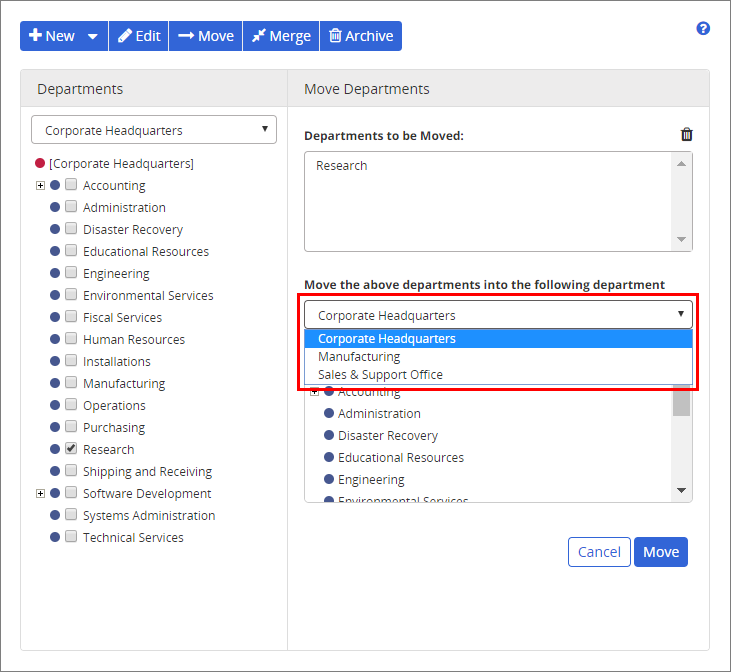
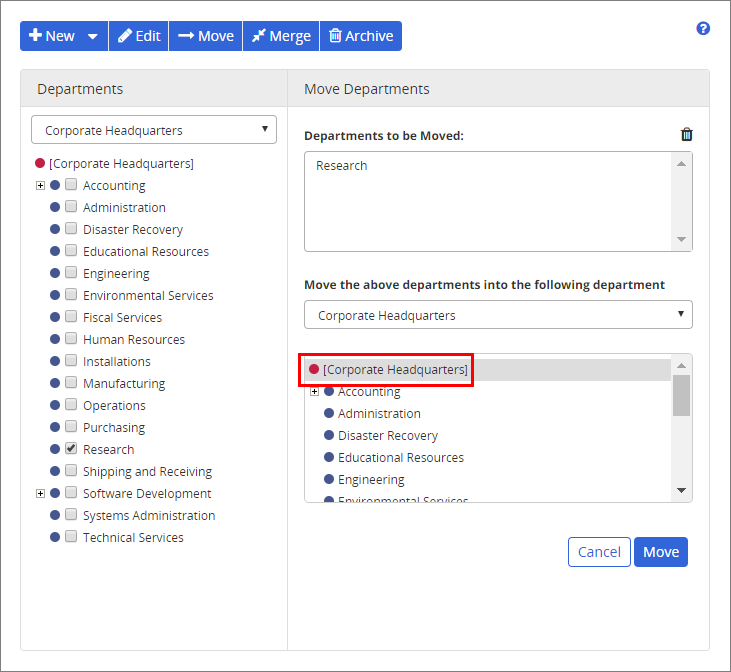
- Do one of the following:
- To move the selected departments to become top-level departments, click the site name preceded by
 .
.
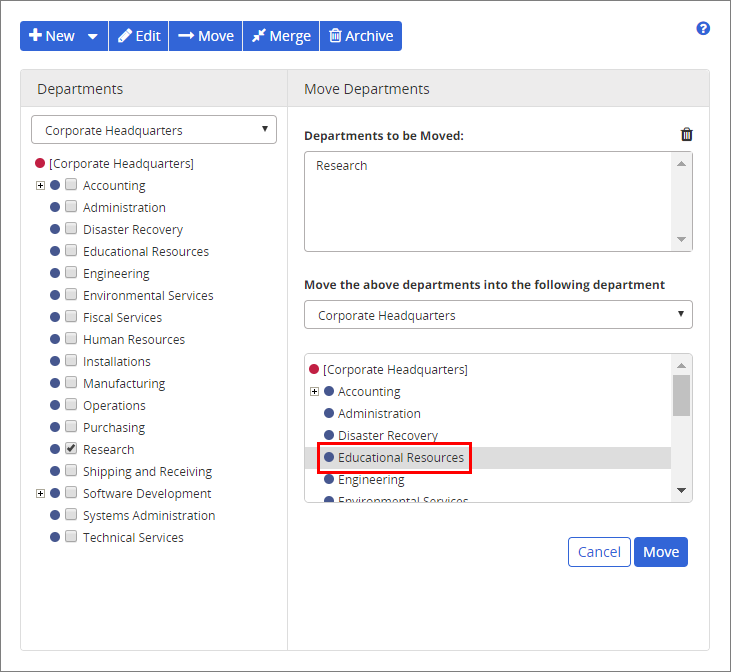
- To move the selected departments as subdepartments, click a department or subdepartment preceded by
 .
.
- To move the selected departments to become top-level departments, click the site name preceded by
- Click Move, and then click OK.
 Product Information
Copyright
Product Information
Copyright
This publication was written and produced at NAVEX Global, Inc., Lake Oswego, Oregon. This publication or any portion thereof is confidential and/or proprietary and may not be reproduced or used in any manner whatsoever without the express written permission of NAVEX Global, Inc.
Copyright © 2026 NAVEX Global, Inc. NAVEX Global® is a registered trademark/service mark of NAVEX Global, Inc. The NAVEX Global® logo is a trademark/service mark of NAVEX Global, Inc. Unauthorized use of NAVEX Global, Inc.’s trademarks/service marks is strictly prohibited without prior written permission from NAVEX Global, Inc.