Reapplying a Template to Multiple Content Items in Bulk Edit
If changes have been made to a template's properties and you want to have those changes reflected in multiple content items (documents, assessments, or campaigns) that are currently assigned that template, you can reapply the template and template properties using Bulk Edit.
Reapply a Template
- From the Bulk Editor page, select documents, assessments, or campaigns, and then click the Modify Properties tab.
- In the Settings step, for Template, select the template currently assigned to the selected content items.
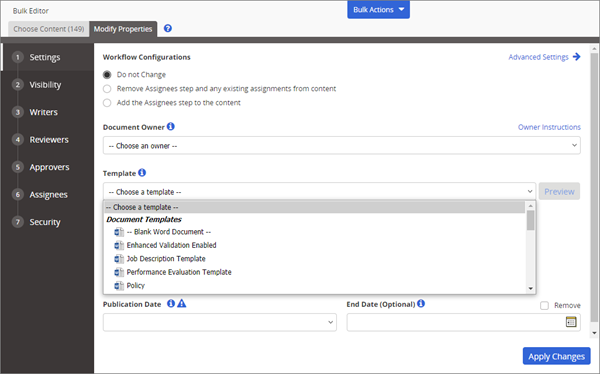
- In the Confirm menu, to specify what you would like to copy from the template, do one of the following:
-
Select Properties to replace the settings on all the steps of the Properties Wizard with those from the template.
-
Select Do NOT replace settings for selected content already using this template.
Note: If any of the selected documents are currently assigned to a different template, they will be reassigned to the template selected in Bulk Editor. Only the properties will be replaced and not document contents.
- (Optional) Click Preview Template to look at the current properties settings for the selected template. The template opens in a separate browser window.
- Click Apply Changes.
- In the Bulk Edit Results window, click OK.
Reapply Template Properties
The Reapply Template Properties option allows you to apply changes made to the template headers and footers to the selected content items. This option is available only if it has been enabled. For information about enabling this feature, contact NAVEX Customer Support by submitting a request in the Community.
Note: Template headers and footers can only be reapplied to content items that are in Draft or Published status.
- From the Bulk Editor page, select documents, assessments, or campaigns, and then click the Modify Properties tab.
- In the Settings step, select Properties to Reapply under Reapply Template Properties.
-
Select Reapply Template Headers, Reapply Template Footers, or both options.

-
Select Close, and then select Apply Changes.
 Product Information
Copyright
Product Information
Copyright
This publication was written and produced at NAVEX Global, Inc., Lake Oswego, Oregon. This publication or any portion thereof is confidential and/or proprietary and may not be reproduced or used in any manner whatsoever without the express written permission of NAVEX Global, Inc.
Copyright © 2026 NAVEX Global, Inc. NAVEX Global® is a registered trademark/service mark of NAVEX Global, Inc. The NAVEX Global® logo is a trademark/service mark of NAVEX Global, Inc. Unauthorized use of NAVEX Global, Inc.’s trademarks/service marks is strictly prohibited without prior written permission from NAVEX Global, Inc.