Viewing Approval after Publication Users
You can determine if a user has been added as an approver after publication and completed their task by reviewing the document Overview tab, the Task by Content - All Tasks report, and the Inserted Field Properties.
View using Overview
-
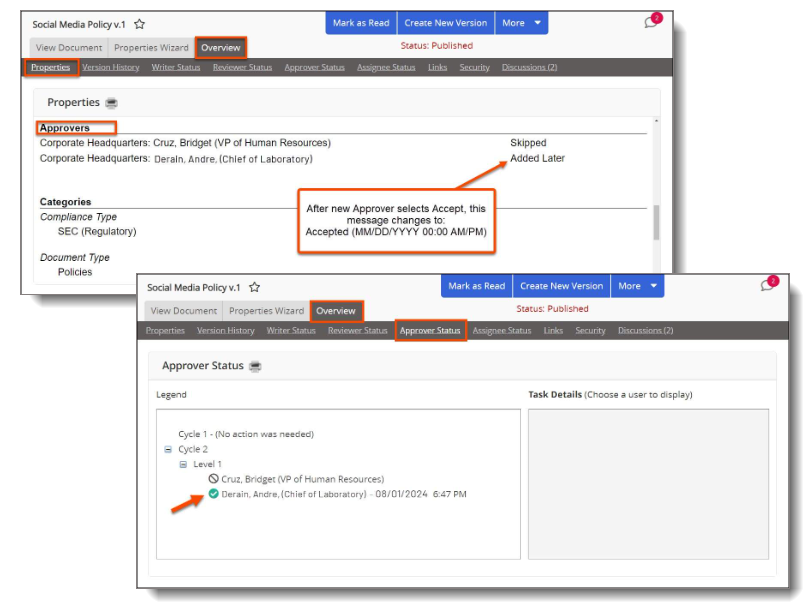
From an open a document, click the Overview tab to view the following information:
-
Under Properties, the new approver will appear as Added Later before approval, and as Accepted after approval.
-
After approval, the new approver will be added to the latest cycle and level under Approver Status.
View using task by Content-All Tasks report
The Tasks by Content - All Tasks report displays information on when the Accept action was taken by the approver on the document.
-
In the navigation pane, click Reports, and then expand Tasks by Content (Documents, Assessments, Campaigns).
-
Click Tasks by Content - All Tasks.
-
In the Content page, do the following:
-
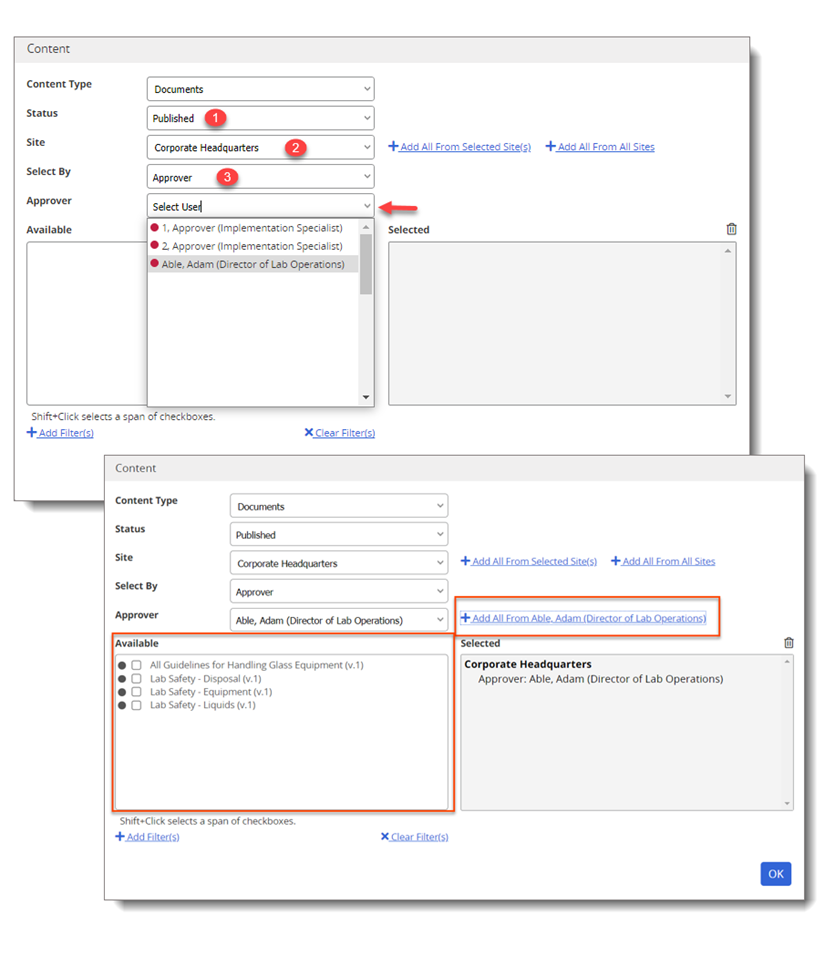
For Status, select Published to view the Published content.
-
For Site, select the appropriate site name.
-
For Selected By, select Approver to view the existing approver list.
-
In the Approver field list, select the desired approver.
-
In the Available box, you can select from the individual items or you can select all items at once by clicking +Add All From [Approver's name].
-
-
-
Click OK, and then click View Report.
-
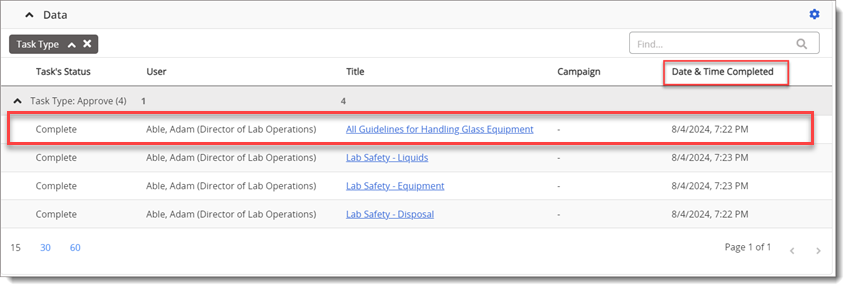
The Task Type: Approve field will display the user's approved documents.
-
-
In the Data pane, click
 , and then click Show/Hide Columns.
 -
Select Date & Time Completed, and then click Done.
-
The new Date & Time Completed column will be visible in the grid showing when the document was approved.
-
Viewing with Inserted Properties
Once the approver has completed the Accept action, the approver's name and date of approval will appear in the Inserted Properties under the Approver information.
Note: If a Document already has Inserted Properties for "Approved By" the information will automatically be updated to show the new Approver.
-
From within a document, place the cursor where you want to insert a field property.
-
In the PolicyTech Tools menu, expand Insert Properties.
-
In the list, expand a property group to view the various fields available, and then click the name of a field to insert it.
-
Click Save, and then click Back to PolicyTech.
 Product Information
Copyright
Product Information
Copyright
This publication was written and produced at NAVEX Global, Inc., Lake Oswego, Oregon. This publication or any portion thereof is confidential and/or proprietary and may not be reproduced or used in any manner whatsoever without the express written permission of NAVEX Global, Inc.
Copyright © 2026 NAVEX Global, Inc. NAVEX Global® is a registered trademark/service mark of NAVEX Global, Inc. The NAVEX Global® logo is a trademark/service mark of NAVEX Global, Inc. Unauthorized use of NAVEX Global, Inc.’s trademarks/service marks is strictly prohibited without prior written permission from NAVEX Global, Inc.