Using Compare/Replace Options
Important: The compare options require that the desktop version of Word be installed on your computer.
The Compare/Replace feature is available whenever you edit a localized copy that is a Word document. The available Compare/Replace options depend on whether the localized copy is the first version or a subsequent version.
If the localized copy is the first version created from the first version of the original document, you can compare the contents of the localized copy to the original's content at any time.
If the localized copy is a second or later version, you can use Compare/Replace options to do any of the following:
- Compare the content of the localized copy with that of the original
- Compare the current version of the original with its previous version
- Compare the content of the localized copy version with its previous version
- Replace the content of the current localized copy version with that of its previous version
- Replace the content of the current localized copy version with that of the original
Use Compare/Replace Options
- From a localized copy, click the Edit Document tab.
Note: In a document list, a localized copy title is preceded by an up arrow (↑).
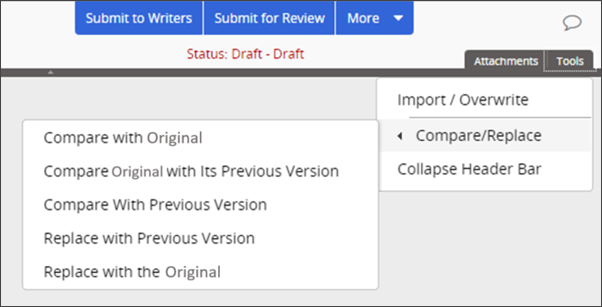
- Click Tools, select Compare/Replace, and then do one of the following:
Note: The first option listed below is always available. The other four options are available only if new versions of the original document and localized copy have been created.
- Select Compare with Original to open with both the localized copy and its original document displayed in the Compare view.
- Select Compare Original with Its Previous Version to display the differences between the original document's current and previous versions.
- Select Compare with Previous Version to display the differences between this localized copy version and its previous one.
- Select Replace with Previous Version, and then click Yes to replace the currently displayed content with the content from this localized copy's previous version.
- Select Replace with Original, and then click Yes to replace the currently displayed content with the content from the original document.
Note: When a new localized copy version is created, it inherits content either from the new version of the original document or from the localized copy's previous version, depending on how Policy & Procedure Management is currently set up. The "Replace" options let you override the default content inheritance.
 Product Information
Copyright
Product Information
Copyright
This publication was written and produced at NAVEX Global, Inc., Lake Oswego, Oregon. This publication or any portion thereof is confidential and/or proprietary and may not be reproduced or used in any manner whatsoever without the express written permission of NAVEX Global, Inc.
Copyright © 2026 NAVEX Global, Inc. NAVEX Global® is a registered trademark/service mark of NAVEX Global, Inc. The NAVEX Global® logo is a trademark/service mark of NAVEX Global, Inc. Unauthorized use of NAVEX Global, Inc.’s trademarks/service marks is strictly prohibited without prior written permission from NAVEX Global, Inc.