Setting Visibility of a Document
An important part of document creation is determining who should interact with the document you are creating. In the Visibility step of the Properties Wizard, you indicate in which sites, departments, and categories the document will be visible. Departments and categories are used to classify the documents and do not limit access to the content items.
Important: The template you selected in the Settings step determines whether you can select departments and categories.
Set Visibility of a Document
- From an open document, click the Properties Wizard tab, and then click Visibility.
- Click Sites, select where this document will be visible, and then click OK.
Note: You must select at least one site. The selected site determines which departments and categories are available for selection. Your home site is selected by default.
- Click Departments, select the appropriate department for the document, and then click OK. You can click a department name to view its associated users.
- (Optional) Click Department Groups (if available), select the appropriate department group for the document, and then click OK.
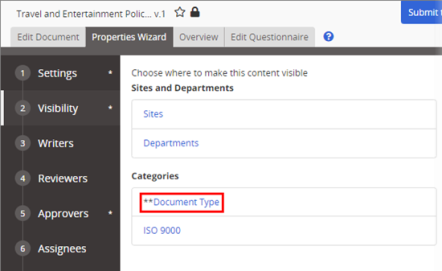
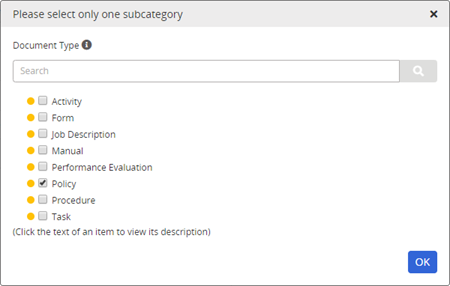
- (Optional) Under Categories, click a category name, select one or more subcategories that apply, and then click OK.
Note: Required categories are marked with two asterisks.
- Click Save.
 Product Information
Copyright
Product Information
Copyright
This publication was written and produced at NAVEX Global, Inc., Lake Oswego, Oregon. This publication or any portion thereof is confidential and/or proprietary and may not be reproduced or used in any manner whatsoever without the express written permission of NAVEX Global, Inc.
Copyright © 2026 NAVEX Global, Inc. NAVEX Global® is a registered trademark/service mark of NAVEX Global, Inc. The NAVEX Global® logo is a trademark/service mark of NAVEX Global, Inc. Unauthorized use of NAVEX Global, Inc.’s trademarks/service marks is strictly prohibited without prior written permission from NAVEX Global, Inc.