Adding Content to a Document with an Upload File Template
Important: Before you can add content to a document, you must complete at least step 1. Settings of the Properties Wizard. If you have not already done so, complete the instructions under Assigning Document Properties.
- Do one of the following to open the document editing window:
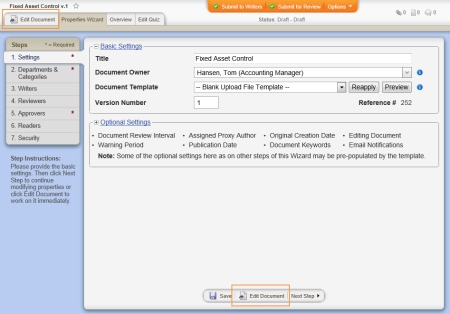
- If you currently have the document open and have the Properties Wizard, Overview, or Edit Questionnaire tab selected, click the Edit Document tab near the upper left corner or the Edit Document button at the bottom of the currently displayed Properties Wizard step.
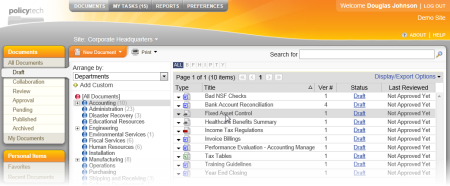
- If the document is currently closed, click DOCUMENTS, and then click Draft. Use any of several methods to find and display the document in the document list (see Finding and Opening a Document for details), and then click the document title.
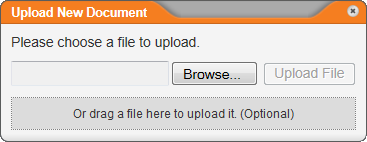
- You should now see the window shown below. Do one of the following to select a file to upload:
- Click Browse, find and click the file you want to upload, click Open, and then click Upload File.
- Open Windows Explorer, and then find the file you want to import. Click and drag the file onto the box that contains the text Or drag a file here to upload it. (Optional). The file is immediately uploaded.
Note: If ever needed, you can import another and replace the currently uploaded file's contents. See Importing Content for details.
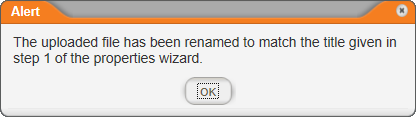
- An alert appears stating that the uploaded file has been renamed to match the document title you typed in the first step of the Properties Wizard. Click OK.
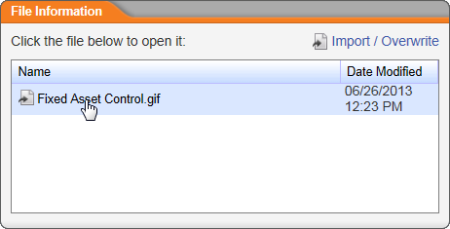
- To view or modify the uploaded document's contents, in the File Information window, click the file name. The document opens in the Windows default program for that file type.
Note: Besides Word and Excel, PolicyTech™ supports the upload and launching of Microsoft PowerPoint® (.pptx, .ppt) and Microsoft Visio® (.vsd, .vss, .vst, .vdx, .vsx, .vtx, .vsw) file types. Your document control administrator (DCA) must enable the launching of any other file type. Contact your DCA to find out what additional file types, if any, have been enabled.
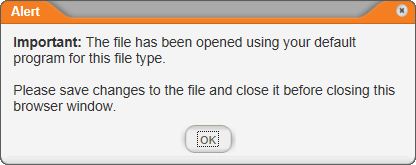
- You will see the alert shown below in PolicyTech. Click OK.
Note: You can use Default Programs in the Windows Control Panel to change what program automatically opens .
- Make the desired changes, save the file, and then close the program.
- When finished adding and modifying content, do any of the following:
 Screenshot...