Revising an Excel Document
Important: Revising a document sends it back to draft status where the document owner must restart the review and approval process. You may want to consider starting a discussion thread first (see Starting a Document Discussion) to avoid unnecessary process delays.
- With the Excel® document open that you've been assigned to review or approve, click Revise, and then click Revise again to confirm.
- The document is reloaded in edit mode. Use any available Excel and PolicyTech™ features to revise the document.
Important: Consider adding comments to or highlighting any cells you change so the document owner can quickly see your revisions without having to compare draft versions.
- When you're done working on the document, do one of the following:
- If you're finished with your revisions,
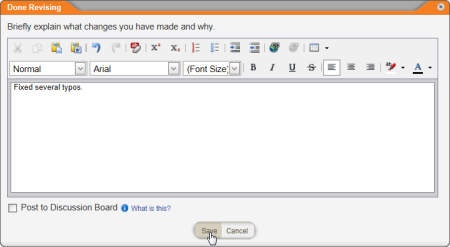
- Click Done Revising,
- Type a brief explanation or description of your revisions, and then click Save.
Important: You can't move on until you type an explanation.
- (Optional) To add what you wrote to this document's discussion board, select the Post to Discussion Board check box (see Working with Document Discussions for details).
- If you're not finished with revisions but need to close the document for now, click Finish Later.
 Screenshot...