Taking a Questionnaire
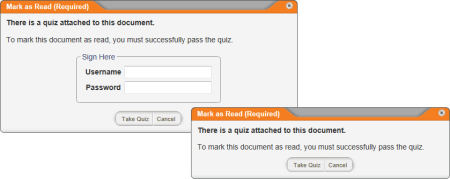
If the current document includes a questionnaire, you will see one of the following windows when you click Mark as Read. You must successfully complete the questionnaire before you can finish marking the document as read.
- Click Take Questionnaire, or, if you see the Sign Here area, type your user name and password, and then click Take Questionnaire.
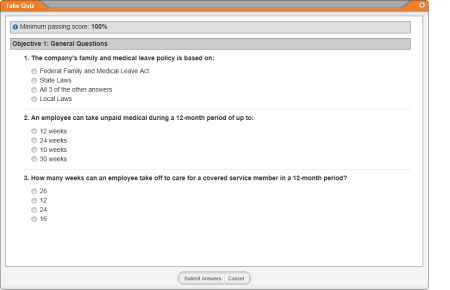
- Read each question carefully and select or type the best answer.
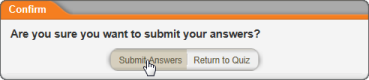
- When you have answered all the questions, click Submit Answers, and then click Submit Answers again in the Confirm window.
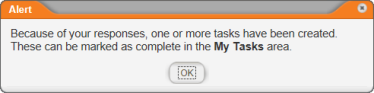
- (Conditional) If the questionnaire creator associated a task with one or more of the answers you selected, you will see the following alert. Click OK to clear the alert. You can find the new task in the Questionnaire Tasks area in the MY TASKS list (see Working with My Tasks).
- Do one of the following, depending on your score:
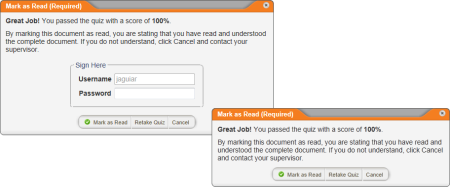
- If you passed the questionnaire, one of the following windows is displayed:
Important: If the questionnaire creator opted to let you print out a certificate showing that you passed the questionnaire, you will see the Print Certificate option in one of the windows below. Click Print Certificate, click  , and then click Print.
Click Mark as Read, or, if the window includes the Sign Here area, type your password, and then click Mark as Read.
|
Notes:
- If a feedback window is displayed, click Next to display one of the windows shown above.
- If you passed the questionnaire but would like to improve your score, click Retake Questionnaire and try again.
|
- If you did not pass the questionnaire, click Retake Questionnaire if you want to try again immediately, or click Close Questionnaire if you want to review the document again before retaking the questionnaire.
 Screenshot...