Screenshot...
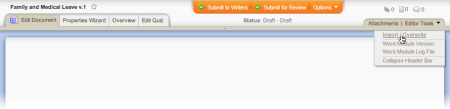
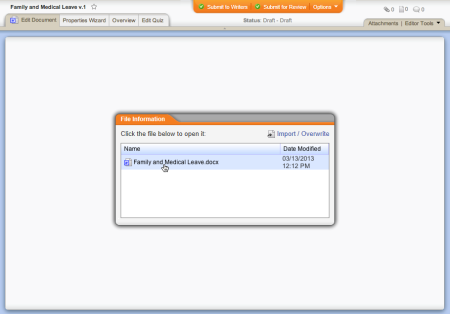
You can import a document from outside of PolicyTech™ into a Microsoft® Word or Excel® PolicyTech document.
Note: Besides Word and Excel, PolicyTech supports the import and launching of Microsoft PowerPoint® (.pptx, .ppt) files types. Your document control administrator (DCA) must enable the launching of any other file type. Contact your DCA to find out what additional file types, if any, have been enabled.
Important: The imported document will completely overwrite the contents of the PolicyTech document. PolicyTech does, however, save a version of the document before performing the import. You can access document versions from the Document History page in a document's Overview tab (see Working with the Document Overview for details). Nonetheless, we recommend using this feature only when the PolicyTech document is empty or if you are certain that its contents can be overwritten without losing important information. If the document already contains important information, we recommend that you copy and paste information from the external document rather than importing it.
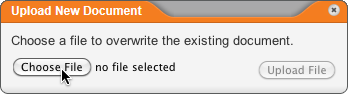
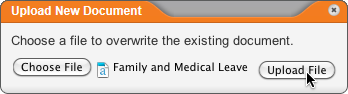
To import an external document into a PolicyTech document,
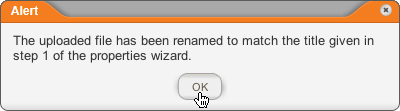
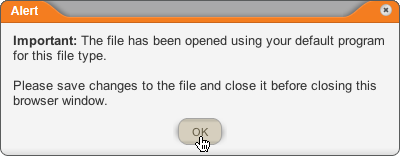
Note: You may have to minimize the default program window or switch windows back to PolicyTech to see this Alert window.