Creating Localized Copies as New Documents or Assessments
Consider the following when working with localized copies:
- By default, the new copy inherits the original document or assessment Title, Owner, and Template settings, any of which you can change.
- The copy's assigned owner can change any of the Create New Localized Copy settings except Original/Copy Mode.
- A copy document/assessment is assigned to its owner's department by default.
- The copy's assigned owner can also change the title, such as translating it into the local language.
Create a Localized Copy as a New Document or an Assessment
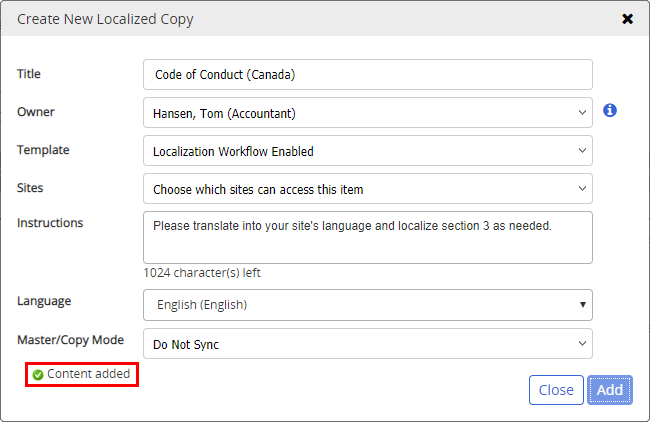
- In the Localization Workflow step of the original document or assessment, click Create New Localized Copy, and do any of the following:
- For Title, change the default title inherited from the original document or assessment.
- For Owner, select the person who will be responsible to localize the copy, submit it for review and approval, and maintain it in the future.
- For Template, if the copy needs a different template, select one.
Important: To preserve the original document's/assessment's contents in the copy, only the new template's properties will be applied to the localized copy. In other words, when the copy's owner opens the copy, its contents will be the same as the original document's/assessment's while the settings in the Properties Wizard will be those from the selected template.
- For Sites, select the sites that will have access to this localized copy.
- (Optional) In the Instructions box, type or edit the text you want included in the email sent to notify the owner to work on this copy.
- For Language, select the language for this localized copy. The Language setting is especially important if you plan to select Sync & Auto Assign or Sync & Auto Assign & Use Original's Recurrence Interval as the Original/Copy Mode for a localized copy in the next step. With one of these settings selected, reading/completion assignments are made according to users' preferred languages.
- For Original/Copy Mode, select an option. The Original/Copy Mode setting determines to what extent Properties Wizard settings and assignments, and assessments in localized copies are controlled by the original document/assessment, see About Sync Modes for detailed descriptions.
- Click Add. The Create New Localized Copy window stays open and a message stating that the copy has been added is briefly displayed.
- Do one of the following:
- To add another copy, modify the title, instructions, and settings as necessary, and then click Add.
Note: Clicking Add immediately adds a copy using the current settings. So, if you don't make changes to the settings, clicking Add adds another copy with the same settings as the previously added copy.
- To stop adding copies, click Close.
- To add another copy, modify the title, instructions, and settings as necessary, and then click Add.
 Product Information
Copyright
Product Information
Copyright
This publication was written and produced at NAVEX Global, Inc., Lake Oswego, Oregon. This publication or any portion thereof is confidential and/or proprietary and may not be reproduced or used in any manner whatsoever without the express written permission of NAVEX Global, Inc.
Copyright © 2026 NAVEX Global, Inc. NAVEX Global® is a registered trademark/service mark of NAVEX Global, Inc. The NAVEX Global® logo is a trademark/service mark of NAVEX Global, Inc. Unauthorized use of NAVEX Global, Inc.’s trademarks/service marks is strictly prohibited without prior written permission from NAVEX Global, Inc.