Working with a New Version of a Localized Copy
When a new version of an original document or assessment is created, new versions of its localized copies are automatically created as soon as the new original version is approved. As a localized copy owner, you will receive task notification email and a task is added to your My Tasks list.
You can prepare a new version of a document or an assessment.
 Preparing a New Version of a Document Copy
If the original is a document that was created in Word, you can handle the new version in different ways, depending on the scope of the new version's changes and the scope of the changes you made to the previous version. You may want to relocalize or retranslate the new version text inherited from the original document, or you may want to keep the previous version's text and make in it the same changes made in the original copy's new version.
-
From an open document, decide on one of the following options for preparing the new version of your localized copy:
-
Start with the contents of the original document's new version. It is typically best to use this method when the localized copy is in the same language as the original document and the changes you made to localize the previous version of the copy were minimal.
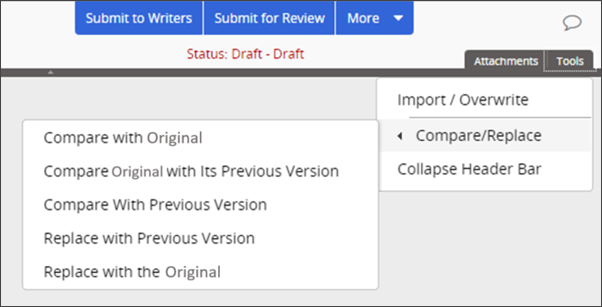
Depending on how Policy & Procedure Management is currently set up, the current contents of this localized copy may have been inherited from the new version of the original document or from this localized copy's previous version. To make sure that you're starting with the original document's contents, with the Edit Document tab selected, click Tools, point to Compare/Replace, and then click Replace with the Original.
-
Start with the contents of this localized copy's previous version. You might choose this method if, in order to localize your copy, you translated the previous version's text or made other significant changes that you don't want to completely redo.
-
Depending on how Policy & Procedure Management is currently set up, the current contents of this localized copy may have been inherited from the new version of the original document or from this localized copy's previous version. To make sure that you're starting with this localized copy's previous contents, with the Edit Document tab selected, click Tools, point to Compare/Replace, and then click Replace with Previous Version.
-
-
(For Word documents only) To see the changes made in the new version of the original document, with the Edit Document tab selected, click Tools, point to Compare/Replace, and then click Compare Original with Its Previous Version.
Note: If the document is not a Word document, you will need to open both the previous and the new version of the original document and do a side-by-side comparison.
The comparison is displayed in a separate Word window.
-
Update or relocalize the localized copy contents by doing one of the following:
-
If the localized copy is a Word, Excel, or rich text document, click the Edit Document tab, and then make the needed changes.
-
If the localized is an uploaded file, click the Edit Document tab, click the document title, and then do one of the following:
-
If the uploaded file type (its file name extension) has been enabled in Policy & Procedure Management, the file will open in the application currently designated in Windows as the default application for that file name extension. Make the needed changes and then save and close the file. The modified file is automatically saved back into Policy & Procedure Management.
-
If the uploaded file type has not been enabled in Policy & Procedure Management, you will be prompted to open or save the uploaded file. Save the file, open it in an application that can edit the file, and then save your changes. Back in the Policy & Procedure Management document with the Edit Document tab selected, click Import/Overwrite, and then upload the updated document to replace the previous version.
-
-
-
Check to see if the localized copy's supplemental materials need updating.
-
Click the Edit Assessment tab to see if an assessment was added or if an existing assessment was modified. If an assessment exists, localize or translate its contents as needed.
Notes:
-
What you see when you click Edit Assessment depends on whether this localized copy's assessment has been synced with the original's and may depend on whether the original copy includes an assessment. See Adding a Assessment to a Localized Document Copy for details.
-
If this localized copy's assessment has been synced with the original copy assessment, then the copy's assessment is compared to the original's assessment. Any copy assessment text that was previously localized (modified in any way from the original assessment text) is retained but is marked with an
 alert if the corresponding original assessment text has changed in the new version and may need to be relocalized.
-
-
Click the Properties Wizard tab and make the setting and task assignment changes as needed.
Note: Creating a new version of the original document does not affect Properties Wizard settings in localized copies. New versions of localized copies are created with the same settings and task assignments as their previous versions.
-
Do one of the following:
-
Submit the new version for review or approval.
-
Click More, and then click Save and Close.
-
Preparing a New Version of an Assessment Copy
- From an open assessment, on the Edit Assessment tab, localize the new version's assessment text as needed.
- Click the Properties Wizard tab and make the setting and task assignment changes as needed.
Note: Creating a new version of the original does not affect Properties Wizard settings in localized copies. New versions of localized copies are created with the same settings and task assignments as their previous versions.
- Do one of the following:
- Submit the new version for review or approval.
- Click More, and then click Save and Close.
Product Information
Copyright
This publication was written and produced at NAVEX Global, Inc., Lake Oswego, Oregon. This publication or any portion thereof is confidential and/or proprietary and may not be reproduced or used in any manner whatsoever without the express written permission of NAVEX Global, Inc.
Copyright © 2026 NAVEX Global, Inc. NAVEX Global® is a registered trademark/service mark of NAVEX Global, Inc. The NAVEX Global® logo is a trademark/service mark of NAVEX Global, Inc. Unauthorized use of NAVEX Global, Inc.’s trademarks/service marks is strictly prohibited without prior written permission from NAVEX Global, Inc.