Assigning Approvers to a Document
Approvers are usually management or executive level users who give their approval to publish the final draft of a document. They are considered an organization's top-level approving authority and typically have legal responsibility for what they approve.
Assign Approvers to a Document
-
From an open document, click the Properties Wizard tab, and then click Approvers.
- In the Approvers step, first check to see if the template included approver assignments. The approver assignment marked with
 is required, meaning that you can't remove it. The other approver assignment is optional and can be treated as a suggestion. To remove an optional approver assignment, click it, and then click
  .
. - For Select From, assign approvers by individual user, by group, by department, or by job titles.
 Select Approvers
- Do one of the following:
- If Approvers or Groups are listed, select one or more of the listed items.

- If Departments, Department Groups, or Job Titles are listed, select one or more users, and then click OK.

Important: As you use any of the user selection methods above, the total number of currently selected individual users is displayed above the selections in the pane on the right, as shown below.
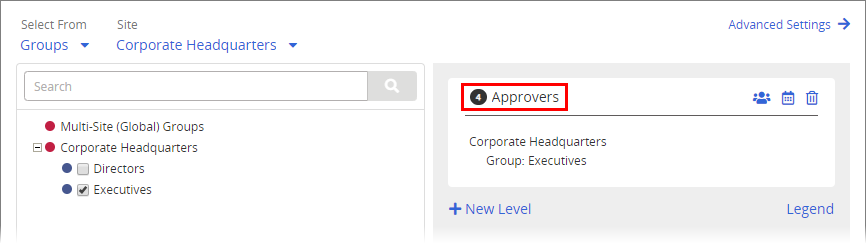
Click the user count to view a list of the selected users.
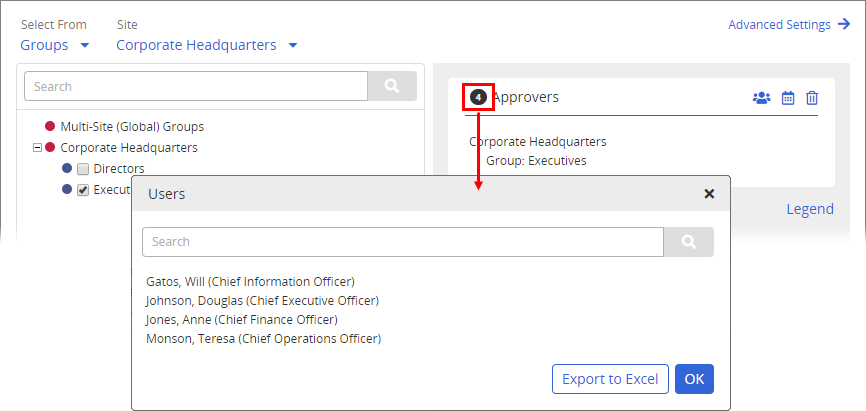
While viewing currently selected users, do either of the following:
- Use Search to find a specific user in a large list.
- Click Export to Excel and follow the prompts to export an Excel file containing the names and other identifying information of all selected users.
- If Approvers or Groups are listed, select one or more of the listed items.
- Do one of the following:
- For Sites, do one of the following:
- Leave the default site selection to select approvers from the current site.
- Select a different site, and then click OK.
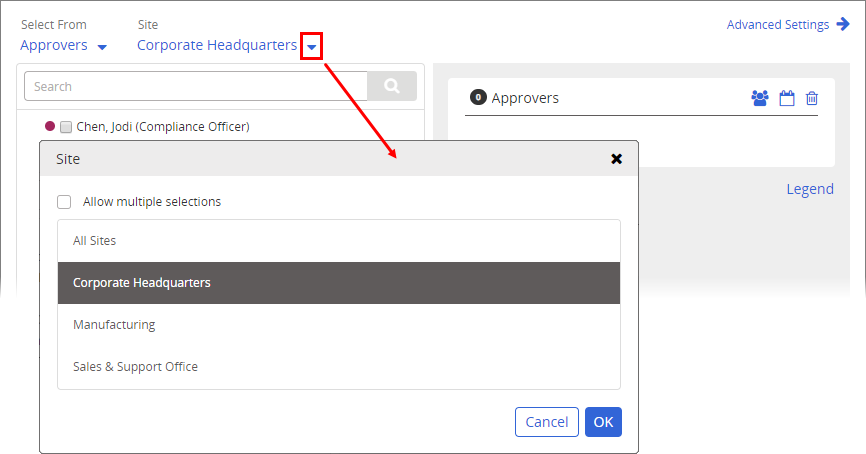
- Select Allow multiple selections, select two or more sites, and then click OK.
Important: If you will be assigning approvers from other sites, see About Task Assignments and Site Access before doing so.
-
(Optional) By default, all assigned approvers must complete their tasks before the document/assessment moves on in the workflow. Alternatively, you can set several users required and have the document/assessment moved on in the workflow as soon as that number of approvers complete their tasks. In the right pane, click
 , select Number of users required from those assigned, and type a number, and then click OK.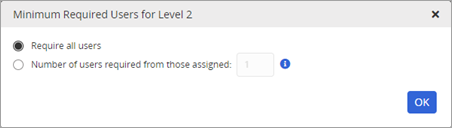
Note: If a group is included and is both inherited from the template and designated as required, users within the group are counted individually toward the Require number. For example, suppose that, on a particular approver level, there is one individually assigned approver and a required group inherited from the template containing three approvers. If you set the Require number at 2, either of the following would complete the level: the individually assigned approver and one user from the required group accepts the document; two users from the required group accept the document.
- (Optional) Set a due date for when approvers should be finished. See Setting Due Dates for Writing, Review, Approval, and Assignee Tasks for details.
- (Optional) As you assign approvers, they all receive tasks when the document goes to Approval. If you want the document to go to approvers in a specific order, create additional approval levels. See Assigning Review Levels for details.
- (Optional) Click Advanced Settings, and then click Add Note to include instructions or other information for the assigned approvers. See Adding Notes for Writers, Reviewers, Approvers, and Assignees for details.
- Do one of the following:
- To continue with assigning properties, click Next Step.
- Click More, and then click Save and Close.
Product Information
Copyright
This publication was written and produced at NAVEX Global, Inc., Lake Oswego, Oregon. This publication or any portion thereof is confidential and/or proprietary and may not be reproduced or used in any manner whatsoever without the express written permission of NAVEX Global, Inc.
Copyright © 2026 NAVEX Global, Inc. NAVEX Global® is a registered trademark/service mark of NAVEX Global, Inc. The NAVEX Global® logo is a trademark/service mark of NAVEX Global, Inc. Unauthorized use of NAVEX Global, Inc.’s trademarks/service marks is strictly prohibited without prior written permission from NAVEX Global, Inc.