Revising an Uploaded Document
Important: Revising a document sends it back to Draft status where the document owner must restart the review and approval process. You may want to consider starting a discussion thread first (see Starting a Discussion) to avoid unnecessary process delays.
Revise an Uploaded Document
- With the document open that you have been assigned to review or approve, click Revise, and then click Revise again to confirm.

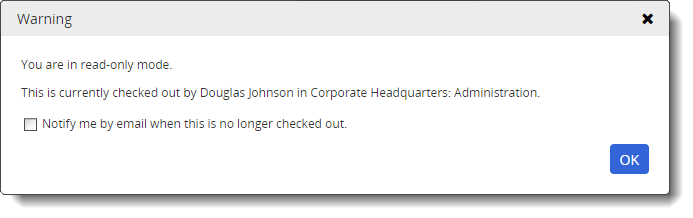
Note: If you see an alert like the one below, it means that another user (another approver or an administrator) is working on the document. You will not be able to revise the document until the other user closes it. If you want to be notified when the document is available, select Notify me by email when the document is no longer checked out, and then click OK to clear the warning.
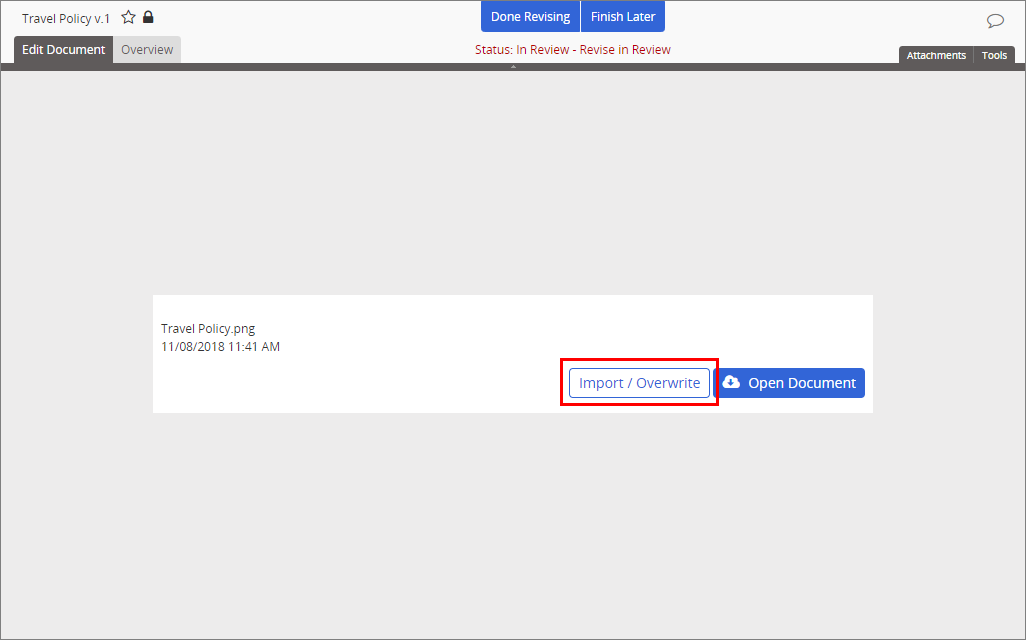
- Click Open Document.

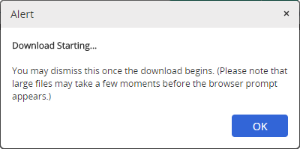
- An alert appears to let you know the document is being downloaded. Click OK.
- Click the file to open it. The file opens in whichever program is associated with that file type in your Windows settings. Make your revisions, and then save the file.
- Back in the Policy & Procedure Management document window, click Import / Overwrite.
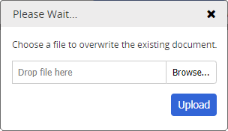
- Click Browse. Find, and select the file, click Open, and then click Upload. (Alternatively, you can open Windows Explorer, find the file you want to import, click, and drag the file onto the Drop file here box, and then click Upload.)
- Click Done Revising.

- (Optional) Type an explanation of the changes you made using the formatting options in the rich text editor toolbar.
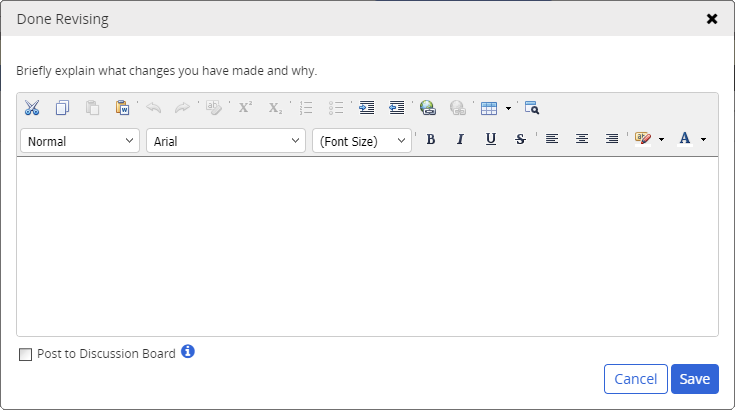
- (Optional) To add what you wrote to this document's discussion board, select Post to Discussion Board (see Working with Discussions for details).
- Click Save, and then click OK.
 Product Information
Copyright
Product Information
Copyright
This publication was written and produced at NAVEX Global, Inc., Lake Oswego, Oregon. This publication or any portion thereof is confidential and/or proprietary and may not be reproduced or used in any manner whatsoever without the express written permission of NAVEX Global, Inc.
Copyright © 2026 NAVEX Global, Inc. NAVEX Global® is a registered trademark/service mark of NAVEX Global, Inc. The NAVEX Global® logo is a trademark/service mark of NAVEX Global, Inc. Unauthorized use of NAVEX Global, Inc.’s trademarks/service marks is strictly prohibited without prior written permission from NAVEX Global, Inc.