Viewing Custom Content Attributes
Custom Content Attributes are an effective way of grouping together policies using different attribute values. Custom Content Attributes can be viewed using Browse , Overview, and the Content Details report.
View Using Browse
-
Select Documents, Assessments, or Campaigns, and then select Browse.
-
Make the appropriate selections for the Site, My Relationship, and Status fields. See Browsing for a Content Item for more information.
-
In the content item grid, select
 , and then select Show/Hide Columns.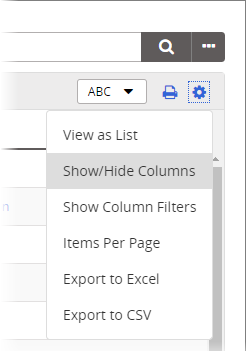
-
In the Show/Hide Columns menu, select Custom Content Attributes.
Important: The Custom Content Attributes column must be enabled in the Default Content Grid Display under System Wide Settings to appear in the Show/Hide Columns menu. See Editing System-Wide Settings for more information.
-
Select Done.
-
The new Custom Content Attributes column with a View option will be visible in the grid.
-
-
Select View to see the attributes assigned to each item.
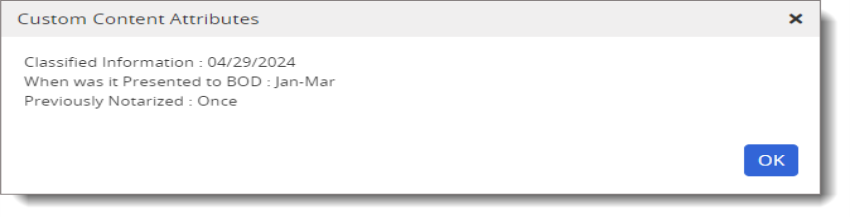
Note: If there is no Custom Content Attribute assigned to the item, selecting View display a Nothing Assigned message.
-
(Optional) In the content item grid, select
, and then select Export to Excel or Export to CSV. A file saves to your Downloads folder.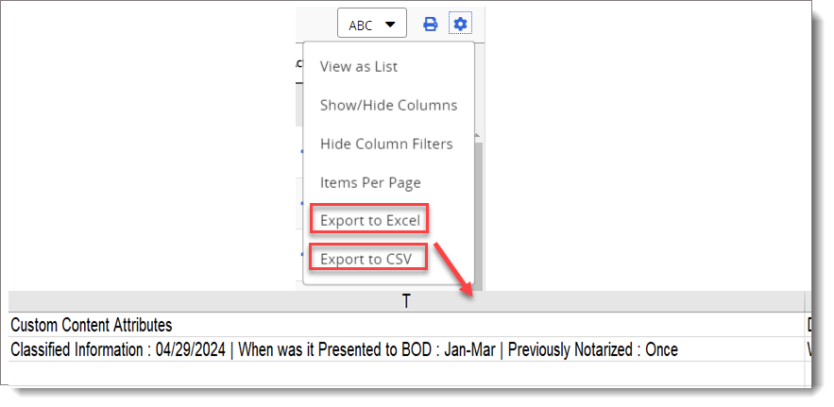
View Using Content Details Report
The Content Details report displays information on selected content items, excluding user tasks. Custom Content Attributes can be viewed by accessing the Show/Hide Columns menu after selecting the desired content items.
-
In the navigation pane, select Reports, and then expand Content Reports.
-
Select Content Details.
-
Select content items to include in the report, and then select OK.
-
Select View Report.
-
In the Data pane, select
, and then select Show/Hide Columns. -
Select Custom Content Attributes, and then select Done.
-
The new Custom Content Attributes column with a View option will be visible in the grid.
-
-
Select View to see the Custom Content Attributes assigned to each item.
-
(Optional) In the Data pane, select
, and then select Export. A file saves to your Downloads folder.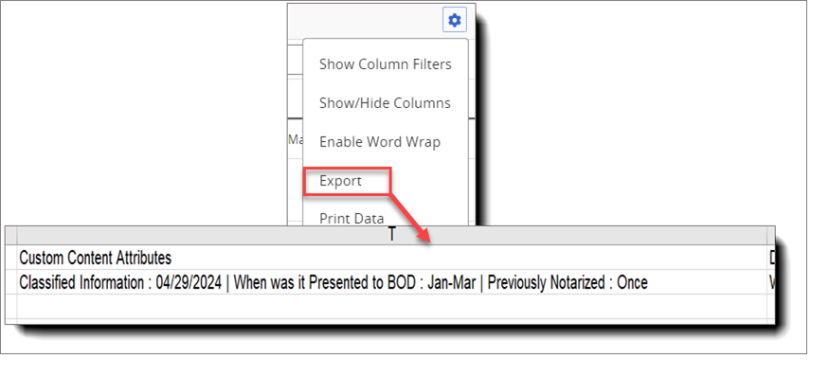
View Using Properties in Overview
-
Select the title of the content item to open it, and then select the Overview tab.
-
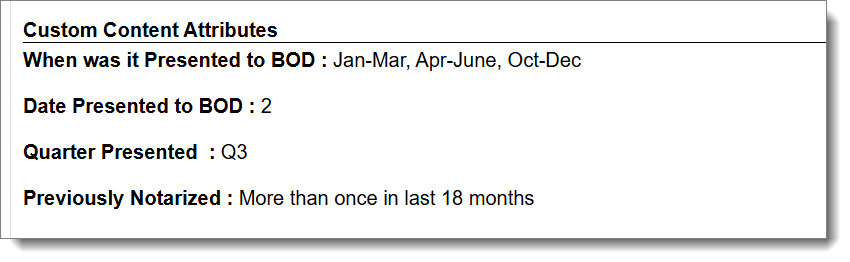
Scroll down to the Custom Content Attributes section of the Properties page to view the list of Attributes.
Note: Each attribute appears in a separate line and multiple values are separated by a comma.
 Product Information
Copyright
Product Information
Copyright
This publication was written and produced at NAVEX Global, Inc., Lake Oswego, Oregon. This publication or any portion thereof is confidential and/or proprietary and may not be reproduced or used in any manner whatsoever without the express written permission of NAVEX Global, Inc.
Copyright © 2026 NAVEX Global, Inc. NAVEX Global® is a registered trademark/service mark of NAVEX Global, Inc. The NAVEX Global® logo is a trademark/service mark of NAVEX Global, Inc. Unauthorized use of NAVEX Global, Inc.’s trademarks/service marks is strictly prohibited without prior written permission from NAVEX Global, Inc.