Reading a Document That Opens Outside of PolicyTech
There are four reasons why you would be prompted to open the document outside of PolicyTech™:
- You have not yet installed the WordModulePlus plug-in on your computer.
- The document is not a Word or Excel document.
- The document is a Word or Excel document, but the document is set to open outside of the browser anyway.
- You are using a Mac computer.
If you have not yet installed the WordModulePlus plug-in and you are using a computer with Windows, you will have a chance to install it as you perform the steps below. After the plug-in is installed and if the document is a Word or Excel document, it will automatically open in a PolicyTech window.
Note: You only need to install the WordModulePlus plug-in once on any given computer.
If the document doesn't open in PolicyTech for any of the three remaining reasons above, you will need to open the document using its default program.
- To open a document you are required to read and which opens outside of PolicyTech, do one of the following:
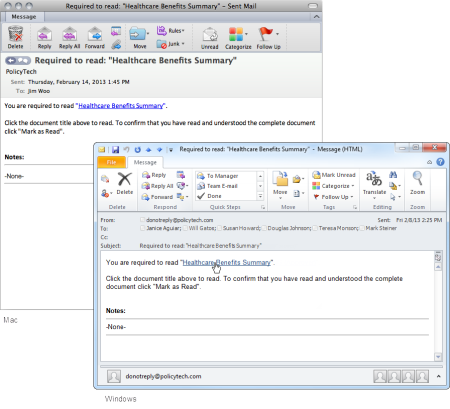
- Open the task notification email, and then click the document link.
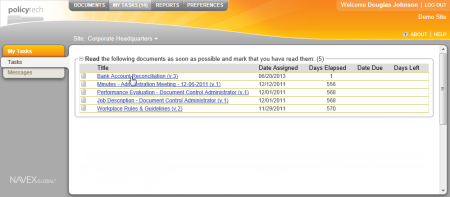
- Click MY TASKS, and then, in the Read area, click the document title.
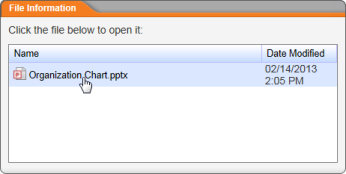
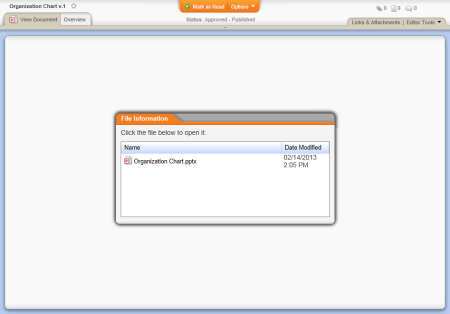
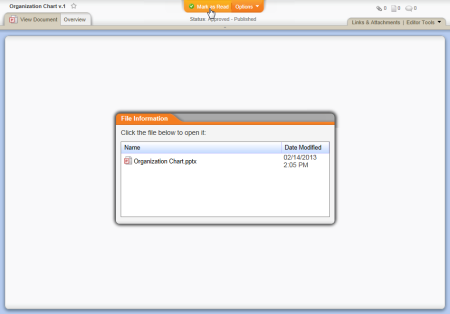
- In the File Information window, click the document file name.
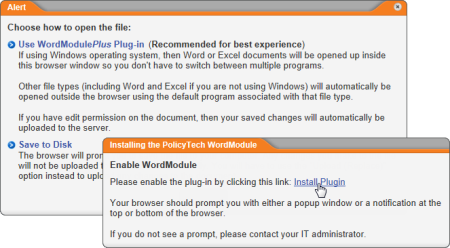
- (For Windows users only) If you see a window like the one below, then the WordModulePlus plug-in needs to be installed on your computer. If you don't see this window, move on to step 4.
- Click Use WordModulePlus Plug-in, and then click Install Plugin.
- Do one of the following, depending on what you see on your screen:
- If asked whether you want to allow the installation program to make changes to the computer, click Yes.
- If asked for the user name and password of someone with administrator privileges, then you do not currently have permission to install software on your computer. Contact your document control administrator or network administrator for help.
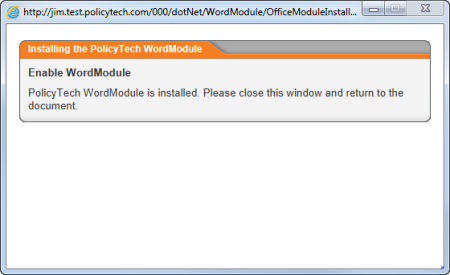
- When the installation is finished, the message below is displayed and the document is opened. Click
 to close the message window.
- Do one of the following:
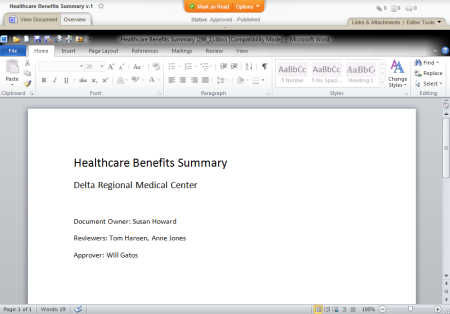
- If you see a screen similar to the one above, go to step 2 in "Reading a Required Document."
- If what you see is similar to the screen below (just like the one you saw in step 2 above), then, in the File Information window, click the document file name again and continue with the next step.
- Windows
You will see a Microsoft® Windows® prompt similar to the one below. Click Open to open the document in its default program.
|
Notes:
- Your prompt may look different, depending on the version of Windows you have, but you should still see options to open or save the document.
- Windows controls which program is used to open a specific type of file.
- You must have the default program installed on your computer in order to open the document.
|
Mac
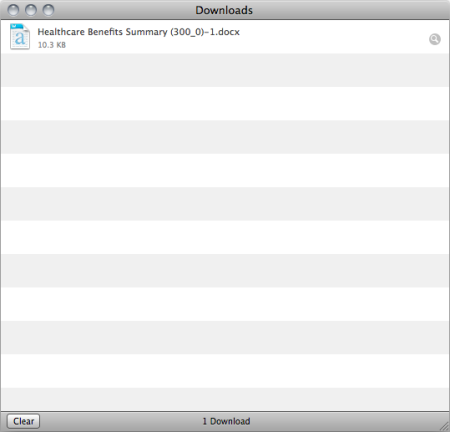
In the Downloads window, double-click the file name to open the document.
Note: You must have a program installed on your computer that can open this type of document.
- Thoroughly read the document, and then close it.
- Back in PolicyTech, check for and review the following: attachments, notes, discussions, change summary (see Reviewing Supplementary Materials for details).
- Click Mark as Read at the top of the document window.
Note: If you don't see the Mark as Read button, then you are not required to read this document. However, you can still mark it as read by clicking Options, and then clicking Mark as Read (Optional).
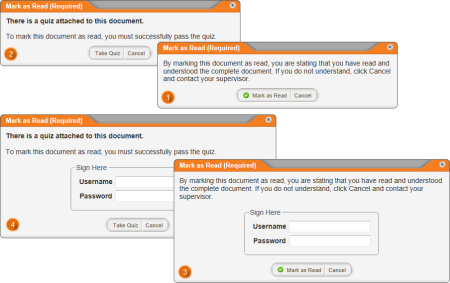
- You will see one of the following windows, depending on whether the document has an accompanying questionnaire and whether enhanced validation has been activated.
- Follow the instructions below for the window you see:
 Read the message, and then click Mark as Read to confirm the action.
 Click Take Questionnaire, and then go to Taking a Questionnaire.
 Type your user name and password, and then click Mark as Read.
 Type your user name and password, click Take Questionnaire, and then go to Taking a Questionnaire.
 Screenshot...