High-Level Steps for Creating a Document (Windows)
Important: If you are using a Mac computer, go to High-Level Steps for Creating a Document (Mac).
- The following steps provide an overview of the document creation process, along with references to more detailed instructions.
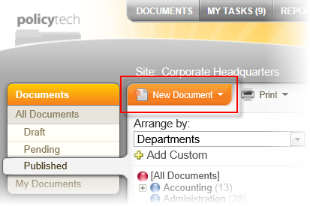
Click DOCUMENTS. If you're a document owner, you'll see the New Document option, as shown below.
Note: If you do not see the New Document option, then you have not been assigned the document owner role. Contact your document control administrator if you have questions.
- Click New Document, and then click one of the following:
- Word Document
- Excel Spreadsheet
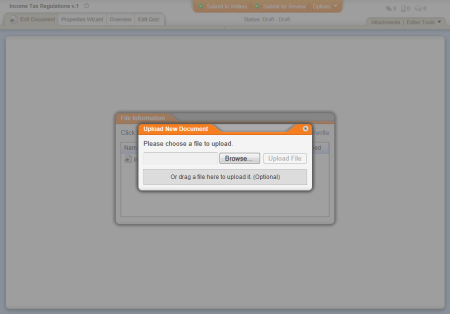
- Upload a File
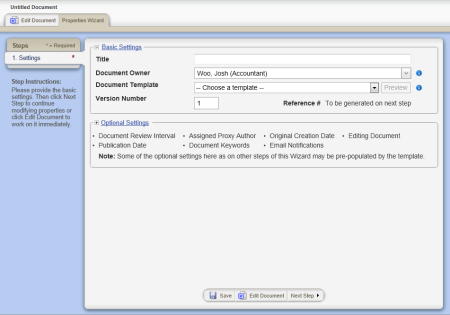
Your screen should now look similar to the one below. These settings constitute the first step of the Properties Wizard, which guides you through all of the available document properties.
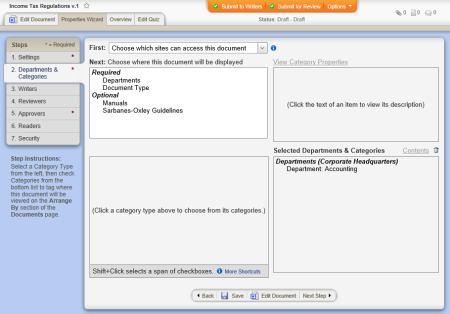
- Work your way through the Properties Wizard steps, which are fully described in Assigning Document Properties.
Important: You must at least type a title, choose a template, and then save the document before you can see the remaining Properties Wizard steps and edit the document.
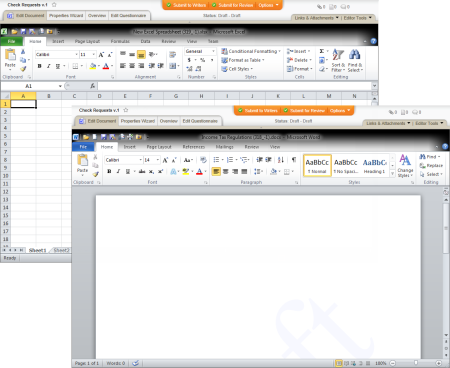
- Click Edit Document, and then do one of the following, depending on the document type you chose in step 2 above:
- (Optional) Add links to and attachments for supplementary and reference materials (see Attaching Files and Adding Reference Links).
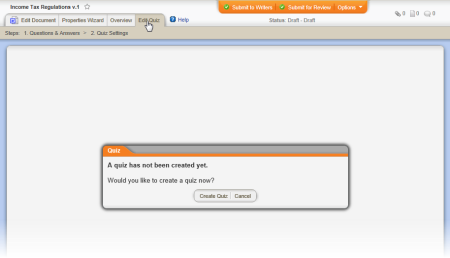
- (Optional) Create a questionnaire that readers must pass in order to mark the document as read (see Creating a Questionnaire).
- (Optional) Start a discussion about the document (see Working with Document Discussions).
- (Optional) Select the documents this new document will replace (see Designating a Document to Be Replaced).
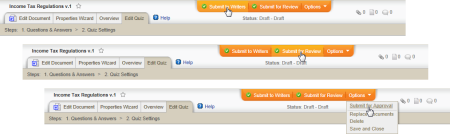
- Submit the document to writers, for review, or for approval (see Submitting a Document to Writers, Reviewers, or Approvers).
- Manage the document through the review and approval process (see Working with Documents in Review and Approval).
 Screenshot...