Screenshot...
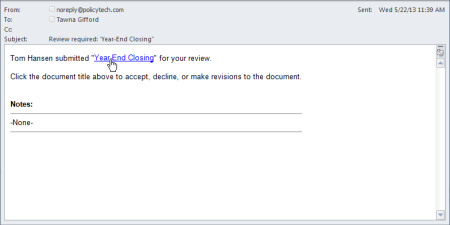
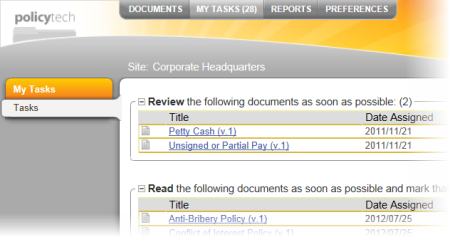
If you have been assigned the reviewer role in PolicyTech™, a document owner can assign you to review a document. Then, when that document is submitted to review, you receive a task assignment notification in the form of an email (if you are set up to receive emails from PolicyTech), and a task is added to your My Tasks list.
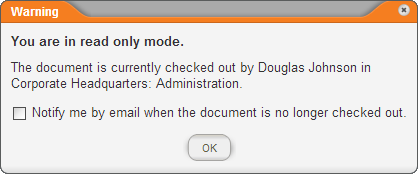
Note: If you see an alert like the one below, it means that another user (another reviewer or a document control administrator) is working on the document in edit mode. You will not be able to revise the document until the other user finishes and closes the document. If you want to be notified when the document is available, select Notify me by email when the document is no longer checked out. Click OK to clear the warning.
Note: If one or more other reviewers have already reviewed a Word or HTML document and made revisions, you see those revisions, with each reviewer's changes in a different color text. You can rest your cursor on (hover over) one of the color-coded changes to see who made the change and when.